Digital updates: October 2026
Categories:
14 minute read
Your Gemini Notebook notebooks now open in the Gemini app, where every chat draws on a notebook’s sources. Study notebooks build on them with short lessons and progress quizzes, and a new student hub gathers Gemini’s learning tools in one place. Skills, which replace Gems, are rolling out in the Gemini app.
Elsewhere, Gemini Notebook adds new quiz formats and short video overviews, and Google Classroom summarises how pupils used a notebook you assigned. Google Chat now saves the messages you haven’t sent and keeps them in step across your devices. Features that need the AI Pro licence are in this month’s AI Pro update.
Gemini app
Notebooks in the Gemini app
Gemini Notebook is now built into the Gemini app. Your notebooks are listed in the left-hand panel, and every chat you start in a notebook draws on its sources. To start a new one from the Gemini app, select New notebook and add up to 10 sources. Upload your curriculum, a mark scheme, and a lesson template, say, and then ask for differentiated resources or feedback that fits them.
Whichever app you open it in, it’s the same notebook. You can create an audio or video overview in Gemini Notebook one day and open the notebook in the Gemini app the next to ask for a study guide.
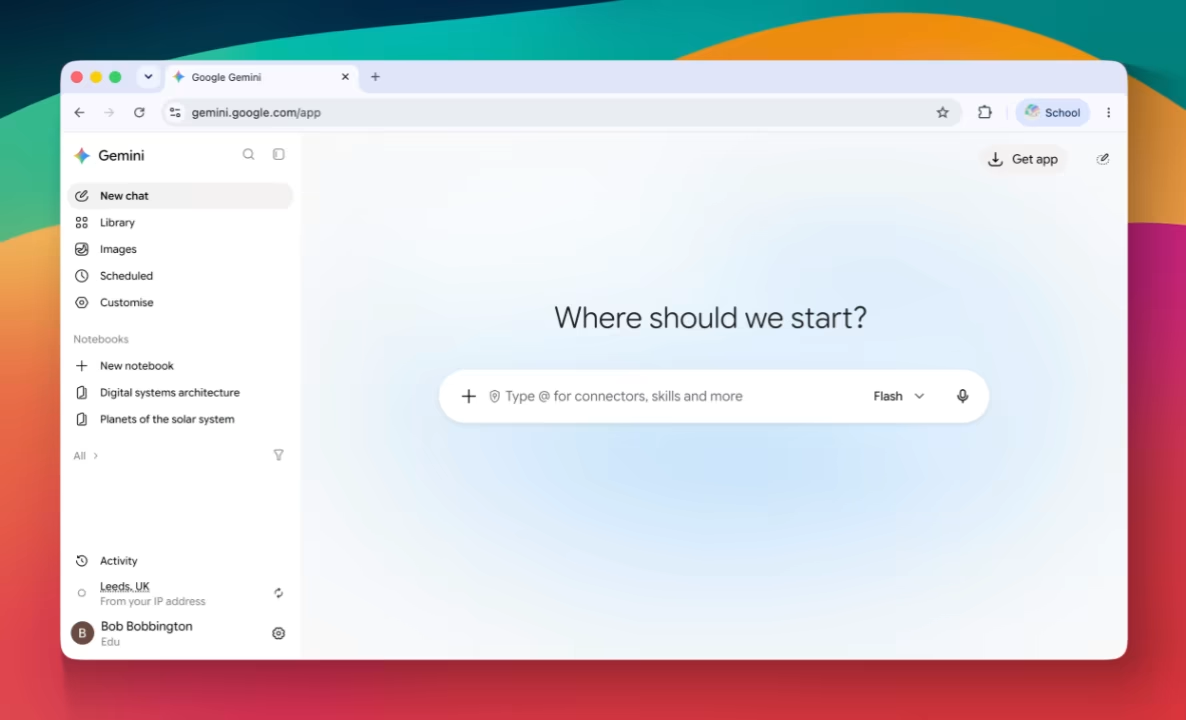
Skills to replace Gems
Skills are reusable instructions you can call on whenever you prompt Gemini, and they are taking over from Gems. Unlike a Gem, a skill works inside an ordinary chat, and you can combine several in one prompt. You might pair a “parent newsletter” skill with a “school house style” skill, for example. To create one, select Customise in the left-hand panel, then Skills. You can also open the settings menu from the cog next to your name and select Skills. Google plans to add sharing skills with colleagues and a Google Drive integration in the coming weeks.
Your Gems keep working for now. From 17 November they move to the Gemini app’s settings, where you can still create, edit, and use them. For schools, Gems stop working in the Gemini app and in Google Classroom no sooner than 1 June 2027. Any Gems left at that point are turned into draft skills. You can recreate a Gem as a skill yourself once skills reach your account.
Skills started rolling out in the Gemini app on 13 October and are expected to reach everyone by mid-November, so you may not see them yet.
Create and manage skills for Gemini Apps
About the transition from Gems to skills

Study notebooks and the student hub
Study notebooks turn a notebook into a personal course on something you want to learn, such as a new exam specification. Select New notebook, then Study and learn, tell Gemini what you want to learn, and upload your materials. Gemini sets progress quizzes to find gaps, then works through short lessons with practice questions. A dashboard sorts topics into Strengths and Focus areas and recommends what to study next.
The student hub at gemini.google.com/students gathers these learning tools in one place: start a study notebook, make flashcards, or take a practice quiz. You can also reach it by selecting Students in the Gemini app menu.
Pupils at Outwood don’t have the Gemini app, so they can’t use study notebooks or the student hub.
Create and use notebooks in Gemini Apps
Gemini app for Windows
Following the Gemini app for Mac, there’s now a desktop app for Windows 10 and 11. Press Alt + Space to bring Gemini up over whatever you’re working on, to check a fact or brainstorm titles for a presentation.
Publish apps to Google Sites
When Gemini builds an interactive app for you in Canvas—a revision game, a quiz, or a simulation—you can now turn it into a Google Site. Select Export, then Google Sites, and the app opens as a new, private site draft that still works as it did in Gemini. Add your own text and pages around it, then publish and share the site as you would any other. You no longer need to copy code across to share what you made.
Create with Canvas in Gemini Apps
Gemini Notebook
New study tools
Gemini Notebook has a set of new tools for revision. Quizzes now include short-answer, multiple-choice, and fill-in-the-blank questions, and you can add or edit questions in a quiz or flashcard set. After a quiz, you can chat with the notebook about how you did to decide what to focus on next.
Interactive learning overviews, under Reports, weave a summary together with quizzes, flashcards, and mind maps to keep a study session on track. Short video overviews are videos of about a minute that combine narration with animations. They can make a formula, a diagram, or a scientific process easier to follow, and you can share them with a class.
These updates are rolling out gradually and may not yet be visible to all users.
Generate reports in Gemini Notebook
Record audio and talk to your notebook
The Gemini Notebook mobile app now has an audio recorder. Record a talk, a meeting, or your own thoughts, and the recording sits alongside your sources, ready to cite and edit.
You can also have a spoken conversation with a notebook in the mobile app, in nearly 100 languages. Its answers come from your sources, and you can interrupt at any time to ask a follow-up.
Spoken conversations are limited to users aged 18 and over, so they are for staff only.
Add Google Play Books to a notebook
You can now add an ebook you’ve bought on Google Play Books to a notebook as a source. Gemini Notebook then answers your questions from the book’s text, and can create quizzes, infographics, or audio overviews from it. More than 100,000 books from major publishers are eligible. You can combine a book with your own sources, such as a scheme of work or your class notes. To check a book, open it in Google Play Books and select the Tools badge: eligible books list Gemini Notebook there.
Pupils can’t add books, because they don’t have Google Play. Anyone you share the notebook with must also have bought the book to ask about it or create from it.
Add or discover new sources for your notebook
Google Classroom
Insight summaries for assigned notebooks
When you assign a Gemini Notebook notebook through Google Classroom, you can now see how pupils used it. Gemini summarises how the class engaged with the notebook and picks out common themes: questions pupils asked, areas of strength, and where they need support. You can also read each pupil’s chat with the notebook, to see the context and check what Gemini’s summary says. Pupils see a notice in the notebook telling them their teacher can see their conversations.
Only pupils in years 10–13 have Gemini Notebook, so summaries are available only for notebooks assigned to those year groups.
Create and assign Gemini Notebook in Google Classroom

Google Docs
Draft from a notebook
Gemini in Google Docs can now use a Gemini Notebook notebook as a source. Type “@” in the Gemini side panel or the prompt bar at the bottom of the document and pick a notebook. Gemini then drafts from that notebook’s sources, with inline citations so you can check where each point came from. If you’ve gathered your research for a policy or a scheme of work in a notebook, you no longer need to copy it across.
Create personalised documents with Gemini in Google Docs
Open and edit Markdown files
Markdown (.md) files now open in Google Docs without being converted. Markdown is plain text that uses simple symbols for headings, lists, and tables, and AI tools often produce it. You can edit them, comment on them, and work on them together, and they stay as Markdown files. Google Drive also shows a formatted preview, with working links and tables, instead of the raw text.
This update is rolling out gradually and may not yet be visible to all users.
View and edit Markdown files in Google Docs
Google Vids
Style your captions
Captions in Google Vids no longer come in a single fixed style. You can change their font, where they sit on screen, and how they animate, to match the look of your video.
See exactly what’s on screen as you edit
The Vids editing canvas now shows only what appears at the current point in the video. Previously, it showed every element in a scene at once, so text boxes, stickers, and images that appear at different times piled on top of each other. Scrub through the timeline and the canvas updates, or click an item’s track to jump to it. That makes layered scenes such as captions and labels easier to build, without splitting a scene into pieces.
This update is rolling out gradually and may not yet be visible to all users.
Adjust timing of elements in a video
Longer, sharper AI clips
The AI-generated video clips in Vids have improved again. Extending a clip now keeps its lighting, characters, and setting consistent, so a scene can run longer without a visible join. You can choose the exact length of a clip to fit your voiceover, and generate clips in 1080p or upscale existing ones.
Use AI to generate video clips in Google Vids
More natural voiceovers
AI voiceovers and avatar narration now sound more natural, with smoother pacing and emphasis that follows the meaning of the script. They also generate faster, so you can try changes to a script and hear the result straight away.
Create voiceovers with AI in Google Vids
Google Calendar
Show up to three time zones
Google Calendar on the web can now show three time zones side by side, where it used to show two. Each time zone can have its own label, and Find a time shows all three when you’re scheduling. That helps when you’re arranging a call with a partner school abroad or a trip in another time zone.
Use Google Calendar in different time zones
Secondary calendars follow their owner
A secondary calendar is any calendar you create beyond your own, such as a department calendar or a room or event schedule. When a staff account is deleted, the secondary calendars it owns are now deleted too. If the account is suspended, its secondary calendars are suspended too. If you own a calendar that colleagues rely on, transfer it to someone else before you leave Outwood; you can do this in the calendar’s settings.
This change is rolling out gradually.
Transfer calendars or events in Google Calendar
Google Chat
Drafts are saved and follow you
Google Chat now saves the messages you haven’t sent. A draft stays in the conversation’s compose box even if you close Chat or restart your computer, and it syncs to your other devices. You can start a message at your desk and finish it on your phone. The Drafts shortcut lists every unsent draft, and drafts are kept for up to 30 days.
Drafts are available on the web now. On Android and iOS, they are rolling out gradually and may not yet be visible to all users.
Reply to a message in Google Chat
Google Sheets
Manual calculation
A new setting lets you pause automatic recalculation in a spreadsheet and recalculate only when you choose. It suits large, formula-heavy sheets, where every paste would otherwise trigger a slow update. It also keeps random numbers and timestamps from changing while you work. Turn it on under File > Settings > Calculation.
Set a spreadsheet’s location and calculation settings
Reorder pivot tables and edit calculated fields
You can now drag rows and columns of a pivot table into the order you want, rather than only sorting them A–Z or by value. Nested items move with their parent, and your order survives refreshes and filtering. A custom order also comes through intact when you import an Excel file.
Calculated fields in a pivot table now open in their own formula editor. You pick field names from a menu instead of typing them, and errors show before you apply the formula.
Chart fonts and stock charts
Charts in Sheets can now use any font from the Google Fonts library for titles, axis labels, data labels, and legends: select More fonts in the chart editor. Fonts used in Excel charts are also kept when you import or export.
Sheets also adds stock charts, which show the high, low, and closing price—and optionally the opening price—for each period as a single marker. They’re useful for business studies and economics lessons on price movements.
Stock charts are rolling out gradually and may not yet be visible to all users.
Twice as many cells
A spreadsheet can now hold up to 20 million cells, double the previous limit. The limit applies to new, existing, and imported files.
Files you can store in Google Drive
Google Meet
Meeting locations on the Meet homepage
The Google Meet homepage now shows where an upcoming meeting is happening. Where you’ve booked a room through Google Calendar, it appears on the meeting’s card. Where the meeting has a street address instead, clicking it opens Google Maps. If a meeting has rooms on several sites, the one in the building you’ve set as your working location in Google Calendar comes first.
Join a live stream’s meeting from Android
You can now move from watching a Google Meet live stream on an Android phone to joining the meeting with your camera and microphone. The option appears only if you’re invited to the meeting as well as the live stream. Tap the meeting title, the live streaming badge, or the info button to switch, without reopening the invitation. This already worked on iPhone and on the web.
This update started rolling out on 19 October and may take several weeks to reach everyone.
Workspace Studio
Reply to an email from a flow
A Reply to email step lets a Workspace Studio flow answer an email within its existing thread. The reply keeps the conversation’s context, which suits flows that sort incoming requests or send follow-ups. It joins the Drive and Chat steps covered last month.
Nested conditions and a Drive search step
Workspace Studio flows can now branch within a branch. That means a flow can check one condition and then another, such as whether an email is from a parent and then whether it mentions a trip. A Search for a Doc step finds documents in Google Drive that match what you specify, so a flow can pick up the right file as it runs.
Two smaller changes help with email and meetings. A flow that starts from a Gmail thread can now ignore replies, so it runs only on the first email in the thread. A flow that starts from a Google Meet call can use the invitation’s full guest list, and a template helps you draft a follow-up email to everyone invited.
These updates started rolling out on 13 October and should reach everyone by 28 October.
Ask a Gem no longer available in new flows
As Gems give way to skills, you can no longer add the Ask a Gem step to a flow. Existing flows that use it keep working until Gems are retired, no sooner than 1 June 2027 for schools.
How the Gems transition affects Workspace Studio flows
Canva
More activities in Learn Grid
Learn Grid has added more activities, practice games, and classroom tools, which you can browse by subject, topic, and level. You can assign a ready-made game as it is or adapt it to your topic, and many show where each pupil is progressing and where they need help.
New Design School courses
Canva’s Design School has new free, self-paced courses, each with a certificate at the end. AI Essentials covers getting the most from Canva’s AI tools. Engage students with Canva is written for teachers, from differentiated activities to classroom tools built with Canva Code.
Pupil accounts at Outwood can use only Magic Media and Dream Lab among Canva’s AI tools, so the AI Essentials course is for staff.
Adobe Express
Videos with transparent backgrounds
Adobe Express now accepts videos with a transparent background. You can layer an animated title, an overlay, or a cut-out presenter straight onto your design, without a green screen or removing the background yourself.
Transparent video support in Adobe Express
Add borders
A new Borders panel in the editor frames photos, shapes, and other elements. You can adjust a border’s colour and thickness to make one part of a design stand out.
Email event invitations
Event invitations can now go out by email. Add your guests’ email addresses as you create the event, and Adobe Express sends them the invitation and any later updates.