Digital updates: May 2026
Categories:
5 minute read
Google Docs receives a major Gemini upgrade this month, with a more capable drafting tool that draws on your Drive and email for context, an improved in-document editing experience, and new tools for matching writing style and document format.
The Gemini app also gains the ability to generate complete files on demand, from lesson plans to spreadsheets. Google Vids adds support for AI avatars when converting a Slides presentation to video, and Workspace Studio, Google’s new workflow automation tool, gains new steps for using your Gems and NotebookLM notebooks in automated flows.
Google Docs
Smarter AI writing tools
Gemini in Google Docs has been significantly upgraded, with three complementary improvements to how it helps you write.
Help me create can now draw on content from your Drive, Gmail, and Chat when generating a first draft. Ask it to write a parent letter, a departmental update, or a new policy document, and it will automatically pull in relevant context from your existing files and emails to produce a more accurate, personalised starting point.
Help me write now works from a new prompt bar at the bottom of any open document, in addition to the side panel. You can select a passage of text to focus Gemini’s attention on a specific part—and suggested edits stay hidden until you approve them, so you remain in control of what changes.
Match writing style and Match doc format help you keep documents consistent. Match writing style analyses the tone and vocabulary of your document and applies it consistently throughout, even when multiple people have contributed. Match doc format can mirror the layout and structure of a reference document you specify, including headings, fonts, and table columns.
Write and edit with Gemini in Google Docs
Custom instructions for Gemini
You can now give Gemini in Google Docs a set of standing instructions that it will follow consistently across your work in Docs. Set them once—for example, “always respond in bullet points” or “use a concise, professional tone”—and Gemini will apply them without you needing to repeat them each time.
To get started, open the Gemini side panel in Google Docs and ask Gemini to remember a specific instruction.
This update is rolling out gradually and may not yet be visible to all users.
Customise Gemini in Workspace’s responses with your instructions
Gemini app
Generate files from a prompt
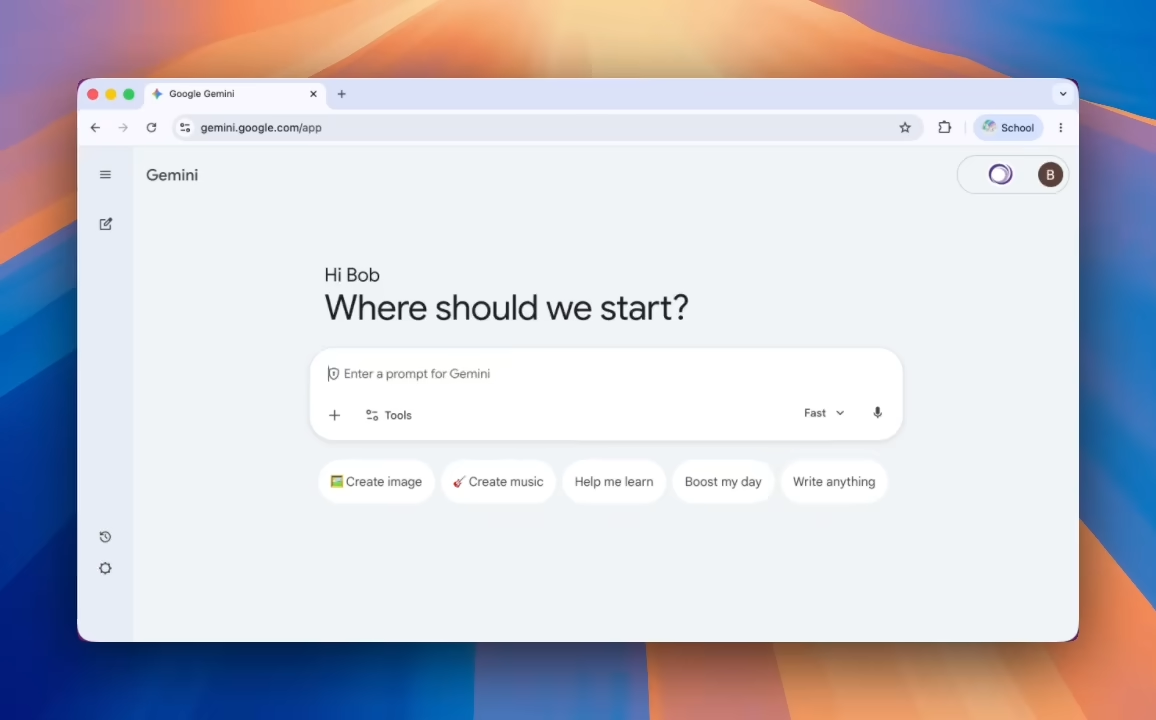
You can now ask Gemini to create a formatted file directly from a prompt. Describe what you need—a lesson plan, a weekly timetable, a set of student feedback notes—and Gemini will produce a ready-to-use file you can download or open straight away.
Supported formats include:
- Google Docs, Sheets, and Slides
- CSV, plain text, and Markdown
To get started, visit gemini.google.com and describe the file you need.
Generate files from your chats with Gemini
Google Meet
Large meetings redirect to the live stream automatically
When you host a large meeting as an adaptive meeting in Google Meet, anyone who joins once the meeting is full is automatically moved to the live stream view. They can still take part using reactions, chat, polls, and Q&A—depending on what you enable in the host controls.
This makes it easier to host whole-staff briefings or large events where more people want to join than the meeting can accommodate.
This update is rolling out gradually and may not yet be visible to all users.
Learn about adaptive meetings in Google Meet
Workspace Studio
Workspace Studio is a new Google tool for building automated workflows (called flows) that link your apps together and handle routine tasks without any coding. For example, a flow could watch a Google Form for new responses, summarise each one with AI, and automatically draft a reply. Visit studio.workspace.google.com to explore what’s possible.
Two AI steps have recently been added to extend what your flows can do.
Ask NotebookLM
You can now include an Ask NotebookLM step in a flow to query one of your existing notebooks as a knowledge source. This lets you ground automated responses in a specific set of documents—such as policies, meeting notes, or research—rather than relying on general AI knowledge.
Learn about the Ask NotebookLM step
Ask a Gem
The Ask a Gem step lets a flow send a prompt to one of your private Gems (custom AI assistants you’ve set up in the Gemini app), automating tasks such as drafting summaries or generating documents based on your own instructions and knowledge base. Any Gem that uses Drive files in its knowledge base can be added to a flow.
Learn about the Ask a Gem step
Google Vids
Custom branded avatars
You can now add your organisation’s logo to AI-generated avatars in Google Vids. Upload a logo when creating a custom avatar, and Vids will adjust its size and placement to fit the style of your video—keeping the avatar consistent with your organisation’s visual identity.
Add an AI presenter when converting Slides to video
When you convert a Google Slides presentation into a Vids project, you can now include an AI avatar as a spokesperson. The avatar is inserted throughout the video to deliver the script alongside your slides, giving the finished result a more presenter-led feel.
This update is rolling out gradually and may not yet be visible to all users.