Digital updates: February 2026
Categories:
5 minute read
A big month for AI in Google Workspace! Gemini writing, image, and video tools are now included for all Outwood staff in Docs, Slides, Forms and Vids.
Alongside that, Google Classroom has gained powerful new recording and AI feedback features, and there are handy improvements across Meet, Chat, Vids, Forms, and the Gemini app.
Gemini in Google Workspace
We can now use Gemini AI tools built into four more Google Workspace apps.
- Docs: Use Help Me Write to draft and refine text, or chat with Gemini in the side panel.
- Slides: Generate original images and add slides using the Gemini side panel.
- Forms: Create forms quickly with AI, and view AI-generated summaries of responses.
- Vids: Generate avatars, video clips, images, voiceovers, and more. You can also convert Slides to Vids.
These Generative AI features are only available to staff accounts.
Learn more about Gemini features in Google Workspace
NotebookLM
Student access
Outwood students in years 11–13 can now access NotebookLM with their school Google account.
Students can find NotebookLM on the Google apps (9-dots) menu. They can create their own notebooks or use ones with curated resources shared by staff.
You can share notebooks with students as classwork in Google Classroom.
Students can view infographics and slides in notebooks you share with them, but can’t generate their own.
Google educator certifications
Want to expand your skillset and gain confidence in using Google tools? Google offers self-paced online training you can complete with an exam to become a Google Certified Educator.
The Educator Level 1 and Educator Level 2 exams are both free until June 2026!
Google Classroom
Record audio, video and screencasts
Teachers and students can now record and share audio, video and screencasts directly within Google Classroom—no need to switch to a separate app.
The record button appears wherever you can post content in Classroom:
- Private comments: Leave voice or video feedback on student submissions.
- Assignments and materials: Record spoken instructions to make tasks clearer.
- Announcements: Post video updates to engage your class.
- Submissions: Students can record and submit responses to assignments.
Learn about organising and communicating with your class.

AI-suggested feedback on written work
When leaving feedback in private comments on an assignment, you can now select Help me write to have Gemini suggest a personalised draft response tailored to the student’s work and year group. You review and edit the draft before sharing it—Gemini just helps with the heavy lifting.
This feature is part of Gemini in Google Classroom, which is only available to staff accounts.
Learn about Gemini in Google Classroom
Google Forms
Automatically close a form
You can now set a form to stop accepting responses automatically—either at a specific date and time, or once a set number of responses has been reached. Previously, you had to close a form manually.
This is ideal for registration forms or surveys with a deadline. Find the option in your form’s response settings.
Learn how to stop collecting responses
Gemini app
Use NotebookLM notebooks as a source
You can now add a NotebookLM notebook directly into a Gemini conversation as a source. This lets you use all of Gemini’s tools, grounded in your notebook’s content.
Select the “+” button in the Gemini prompt box and choose NotebookLM to get started.
Upload & analyse files in Gemini apps

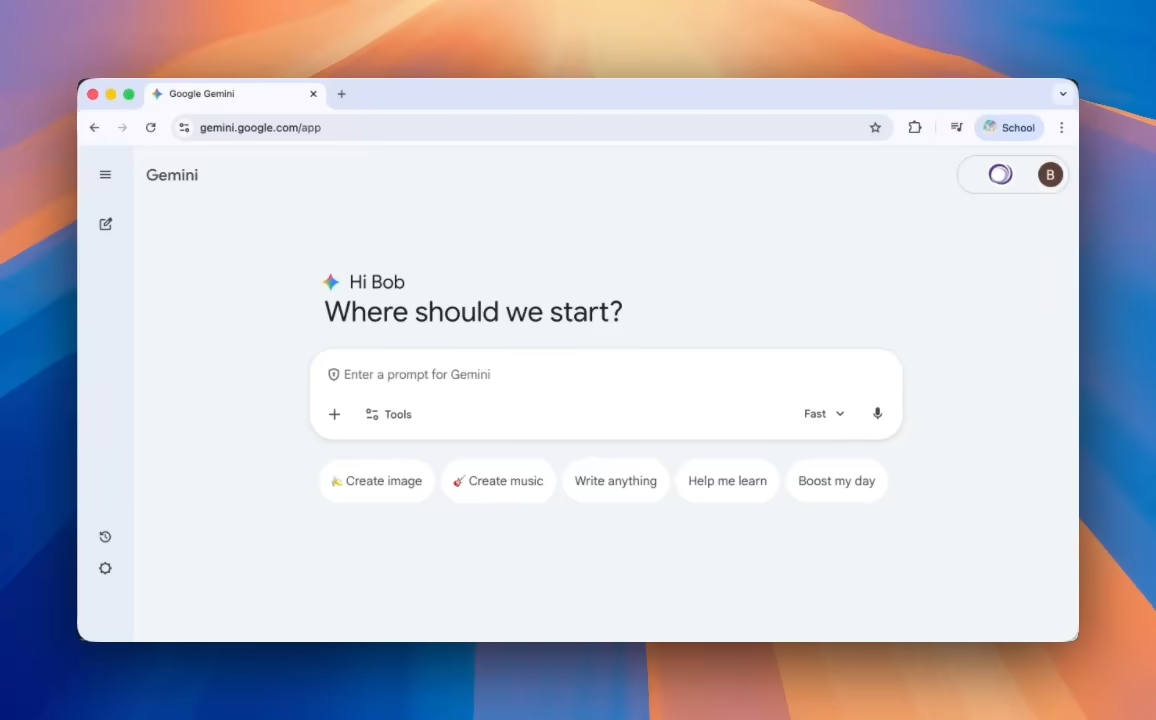
Generate custom music with Lyria 3
You can now generate original 30-second soundtracks in the Gemini app, powered by Lyria 3—Google’s most advanced music generation model.
Describe the music you’d like to hear, or use an image as inspiration, and Gemini will create a custom track. Think lo-fi study beats, a backing track for a presentation, or a fun jingle for a class project. Select Create music from the tools menu to try it.
Music generation is only available to staff accounts.
Google Chat
Forward messages
You can now forward messages in Google Chat to any other direct message, group, or space. The forwarded message shows the original sender and any attachments, so there’s no need to copy and paste or share a screenshot.
Learn how to forward a message in Google Chat
Google Meet
Pop shared content into its own window
When someone shares their screen in a meeting, you can now click Open in new window to pop the content into its own window. Drag it to a second screen or resize it independently, while keeping the main meeting window in view.
Tips on how to collaborate in a video meeting
Google Vids
More editing features for everyone
Three Vids editing tools that were previously limited to certain Workspace editions are now available to all users:
- Read-along teleprompter: A script that automatically scrolls in time with your speech as you record.
- Transcript trim: Edit your recording by deleting words or silences directly from the transcript.
- Styled captions: Choose from a range of animated caption styles to add to your video.
Learn how to use the teleprompter in Google Vids
Generate portrait video clips
You can now generate vertical, portrait-sized, video clips based on a reference image or prompt in Google Vids. Great for mobile content.
Learn how to use AI to generate video clips in Google Vids.
Google Chrome
Save PDFs to Drive
When viewing a PDF on the web in Chrome, you can now save it straight to Google Drive. Look for the “Add to Drive” button in the top-right.
Learn about managing PDFs in Chrome.
Microsoft Office interoperability
You can now edit password-protected Microsoft Office files directly within Docs, Sheets, and Slides. This can help us work with documents shared by third parties.
Google Sheets
New functions
Two new functions in Sheets help manage spreadsheets with multiple tabs:
=SHEET(name)returns the sheet number of the named sheet (tab), or the current sheet when no name is given.=SHEETS()returns the total number of sheets (tabs).
The new functions are being released gradually. You’ll see them by 10th March 2026.