Digital updates: January 2026
Categories:
6 minute read
We hope your new year is off to a great start!
The last month has brought some exciting changes, including scheduling Google Chat messages, improved AI capabilities across the Gemini app, Vids, Classroom, and NotebookLM, and various enhancements to hosting meetings in Meet.
Generative AI training
Want to get started with generative AI? Google offers a self-paced introductory course that’s designed for teachers.
You’ll learn how to use generative AI tools, like the Gemini app and NotebookLM, to save time on both admin and lesson prep. It takes about 2 hours in total, including hands-on experience of using the tools.
Generative AI for Educators with Gemini
Google Chat
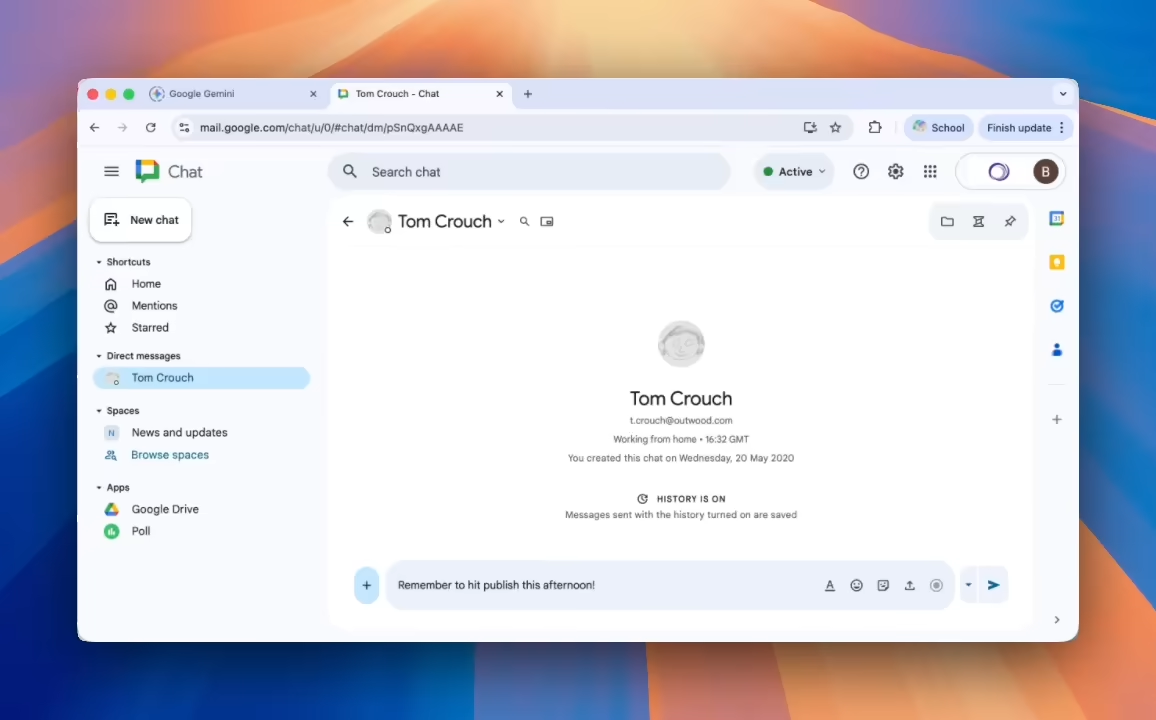
Schedule send
You can now schedule chat messages for delivery at a future date and time, just like for email messages in Gmail.
When you have messages scheduled to send, a “Drafts” tab is shown in the menu (under “Shortcuts”), where you can edit or cancel your scheduled messages.
Learn how to send and schedule messages in Google Chat.
Feeds app
Google Chat has a new optional Feeds app.
The new app makes it simple to subscribe to news feeds (Atom or RSS) in Google Chat. Once you’ve added a feed, new posts from your chosen news site or blog are automatically sent to your Chat or Space.
New web address
If you prefer to use Chat separately from Gmail, Google Chat now has a dedicated home: chat.google.com!
Toggle requests to join spaces
If you own or manage a space in Google Chat, there’s a new option to toggle whether users can request to join your space.
Learn how to manage space settings in Google Chat.
Block invites from unknown senders
You can now toggle whether to restrict who can request to message you from outside your organisation. Selecting “known senders only” will only allow accounts from outside of Outwood that you’ve previously interacted with or have in your contacts to invite you to chat or join a space.
Learn how to restrict messages from unknown senders in Google Chat.
Gemini app
Model and tool options
The model you select can impact both the quality and speed of responses, as well as the available tools. In general:
- Gemini “Fast” is the default, with quick responses making it great for everyday tasks.
- Gemini “Thinking” can be better at solving complex problems and may generate higher-quality content, but will respond more slowly.
- Gemini “Pro” spends the most time thinking, making it great for working on complex problems. You’ll get the highest quality, at the cost of waiting a little longer.
Don’t see the tool option you’re expecting? Try selecting a different model.

Gemini 3 Flash
The Gemini app is more helpful than ever!
Following the introduction of Gemini 3 Pro in November, Google has now added Gemini 3 Flash to the Gemini app. This brings all the model options (Fast, Thinking, and Pro) from Gemini 2.5 to Gemini 3, for more intelligent responses.
Find out more about the Gemini 3 Flash model.
NotebookLM
Generate data tables
Data tables are a new type of studio resource you can generate in NotebookLM. They allow you to extract structured information from your sources, organised into a table.
- Characters from literature with their descriptions and story impacts
- Historical events with their dates and long-term consequences
You can export your tables directly to Google Sheets.
More uses for Data Tables in NotebookLM.
Gemini 3
NotebookLM is now powered by Google’s Gemini 3 models, which brings improved reasoning and understanding.
Google Classroom
Audio lessons
There’s a new addition to Google Classroom’s built-in Gemini AI tools: Create an audio lesson. This lets you generate and share an audio discussion of a topic.
Visit the Gemini tab in Google Classroom to try it out!
Learn about Gemini in Google Classroom.
You may have previously seen this feature through Outwood’s participation in a pilot.
Google Meet
Auto picture-in-picture
When you’re hosting a meeting and start sharing your screen, Google Meet now supports automatically opening picture-in-picture. This allows you to see your audience at the same time as the content you’re presenting.
Picture-in-picture was previously only available when sharing a Chrome tab.
You’ll need to allow Meet permission to use automatic picture-in-picture when asked.
You can choose when to automatically use picture-in-picture in Meet settings.
Learn how to use picture-in-picture with Google Meet.
Choose preferred caption language on devices
You can now select your own preferred caption language when viewing a Meet livestream on your mobile device.
Previously, only the caption language set by the meeting host was available for viewers.
Learn how to use translated captions in Google Meet.
Improved livestream access controls
Meeting hosts now have more flexible access controls for live streams.
- Restrict access to internal viewers only
- Target specific audiences by restricting to particular users or groups
Learn about hosting live streams via Google Meet.
Stereo sound
Google Meet now includes support to present with stereo sound.
Stereo sound is only available to meeting attendees viewing with Chrome or Firefox.
Learn how to present during a video meeting
Share device audio
When presenting to a video meeting, you can now also share system audio, enabling you to include audio from other applications on your computer, like media players.
The new “Also share system audio” option is available when you choose to share a window or your whole screen.
Sharing device audio is only available on the web when using Chrome. It requires a minimum of Windows 11 or MacOS 14.2 (Sonoma).
Learn how to present during a video meeting.
Google Drive
Modern document viewer
When viewing third-party documents in Google Drive—including PDFs, images, videos and audio—you now have an improved file viewer, making it easier to navigate documents.
- Table of contents and page thumbnails (when available)
- Option to search the transcript of audio files
Use the “Open in new tab” option in Drive.
Learn how to use Google Drive.
Google Vids
Upgraded AI avatars
Google Vids allows you to give a script to an “AI avatar” and create videos of a consistent on-screen presenter.
AI avatars now use Google’s new Veo 3.1 video generation, which provides more expressive avatars with improved lip-syncing. You can generate up to 20 avatar videos each week.
Access to AI features in Vids is part of a time-limited trial until 31 May 2026.
Learn how to use AI avatars in Google Vids.
Adobe Firefly mobile apps
Adobe has launched Firefly mobile apps for iOS and Android. The apps allow you to generate images, videos, and audio using AI.
- Text-to-image and text-to-video generation
- Image-to-video generation
- Generate sound effects
- Generative fill tools
Learn more about the Adobe Firefly mobile apps.
Canva AI resources
Canva has some great built-in AI tools—if you’d like some ideas to get started, check out their AI for Teachers guide.
Google educator certifications
Want to expand your skillset and become an expert at using Google tools in education? The Google Certified Educator Level 1 and Educator Level 2 exams are both currently free of charge!
For either certification:
- Complete the appropriate level of “use of Google Workspace for Education Fundamentals” course at your own pace.
- Take the exam and earn your badge!