edTech recap: November 2025
Categories:
5 minute read
November brought some exciting new features to Google Workspace, including major AI enhancements across the Gemini app, NotebookLM, and Vids.
Gemini app
Model and tool options
The model you select can impact both the quality and speed of responses, as well as the available tools. In general:
- Gemini “Fast” may have more tool options and respond more quickly, but its responses might not be as sophisticated.
- Gemini “Thinking” will generate higher-quality content, but may respond more slowly and have fewer tools available.
When you want the highest quality responses, choose “Thinking.”
Don’t see the “Deep research” option? Try selecting the “Fast” model.

Generate presentations
You can now create presentations in the Gemini app, using Canvas ✨
Ask Gemini to “Create a presentation…” or “Generate slides…” and describe the presentation you would like to create.
You can then collaborate with Gemini in Canvas to finalise your slides before exporting to Slides for any manual tweaks. Perfect for when you’d like AI to help with the initial structure.
Learn how to create documents and presentations with Canvas.
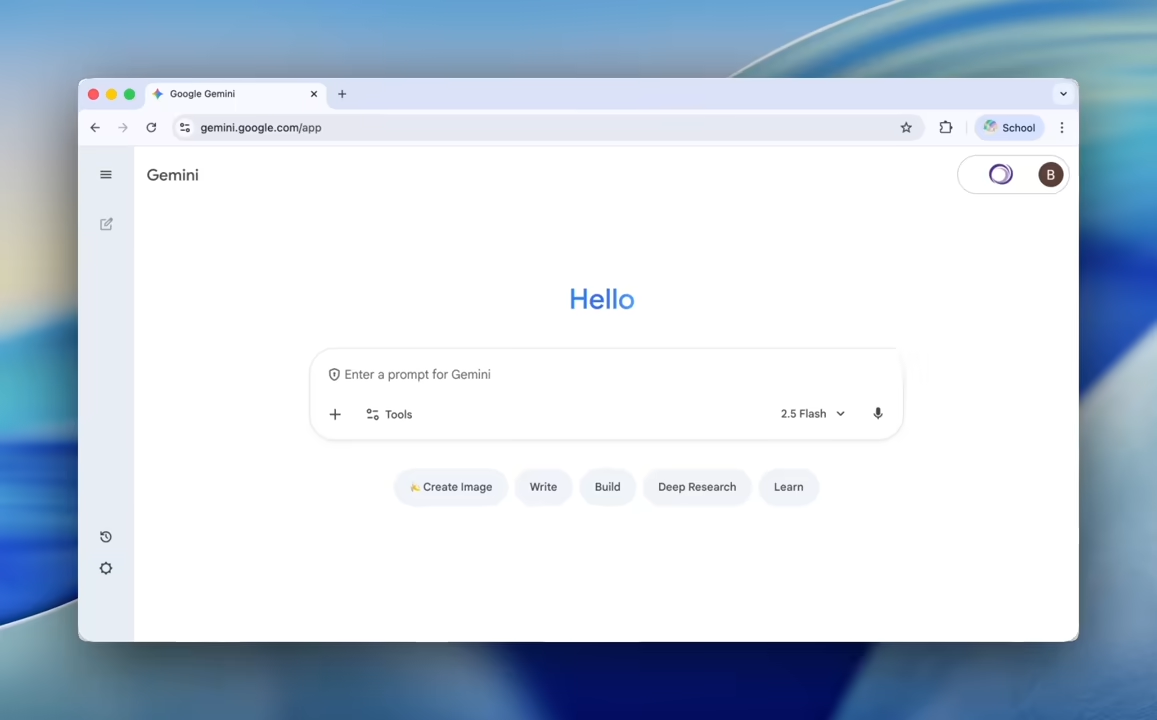
Deep research can search your Workspace content
Deep research is now integrated with Google Workspace in the Gemini app!
Deep Research can now gather information from your content in Drive, Gmail, and Chat in addition to searching the web, making it more powerful for internal research.
Learn how to use Deep Research with Gemini apps.
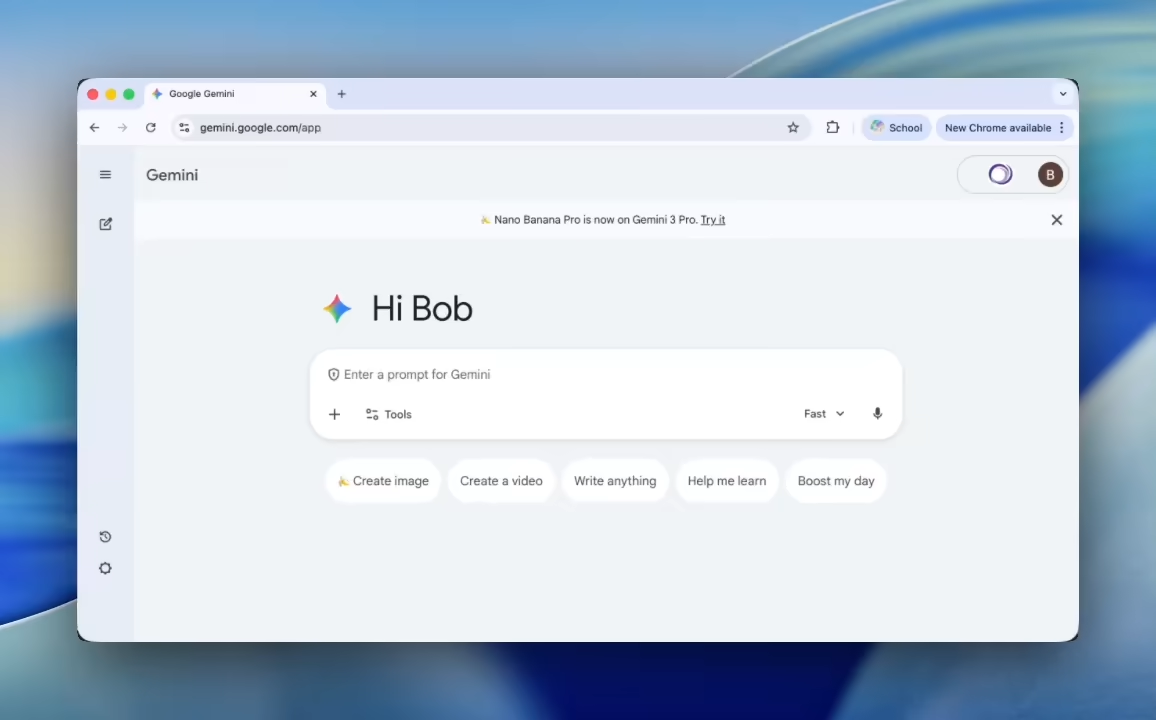
Nano Banana Pro 🍌
Nano Banana Pro allows you to generate even more sophisticated images in the Gemini app.
- Infographics
- Diagrams
- Better text
- Improved colour, lighting, and focus adjustments
Select “Thinking” from the model drop-down in the Gemini app to use Nano Banana Pro.
Explore how to get the most out of Nano Banana Pro.
Gemini 3 Pro ✨
The Gemini app is more intelligent than ever! Google’s new Gemini 3 Pro model delivers more helpful responses and higher-quality reasoning.
Select “Thinking” from the model drop-down in the Gemini app to use the Gemini 3 Pro model.
The Gemini app also received some tweaks, including a new “my stuff” section in the sidebar that makes it easier to find images, videos and reports you’ve created recently.
Find out more about the Gemini 3 models.
NotebookLM: Nano Banana Pro 🍌
Nano Banana Pro brings two brilliant new features to NotebookLM: generating infographics and PDF slide decks!
Google Drive: set sharing expirations in shared drives
You can now set expiration dates to temporarily share documents within shared drives (as well as those in your “my drive”).
Choose the “Add expiration” option when sharing a file in Google Drive.
Learn about setting expiration dates for file access.
Google Chat
Inline threads for direct messages and groups
You can use message threads in direct messages and group messages, just like in Chat Spaces.
This can help your conversations stay organised by keeping all of your messages about a topic together.
Learn how to reply in a thread in Google Chat.
Preview unread messages
You can now preview the last unread message in a conversation from the sidebar.
Hover your mouse cursor over a bolded conversation to peek at the new message.
Learn how to navigate Google Chat
Google Meet
Meet integrates with Chat
When you schedule a Meet using Calendar, the Meeting chat now uses Google Chat.
- Share documents, images, and links
- Respond to messages with emoji
- Reference or continue your conversation after the Meet has ended
Meeting hosts can toggle this on/off in advance of the meeting, using the “Continuous meeting chat” setting in the video call options.
Learn how to use Chat with Google Meet.
More emoji reactions
You can now react with the full range of emojis in your meetings.
Learn how to use reactions in Google Meet.
Google Calendar
Block off time to work on tasks
You can now block off time in your calendar for specific tasks—everything stays synced with your task lists.
Tasks also have options for:
- Showing the time as free/busy
- Automatically setting do-not-disturb on Chat
- Automatically declining event invitations
Learn how to manage tasks in Google Calendar.
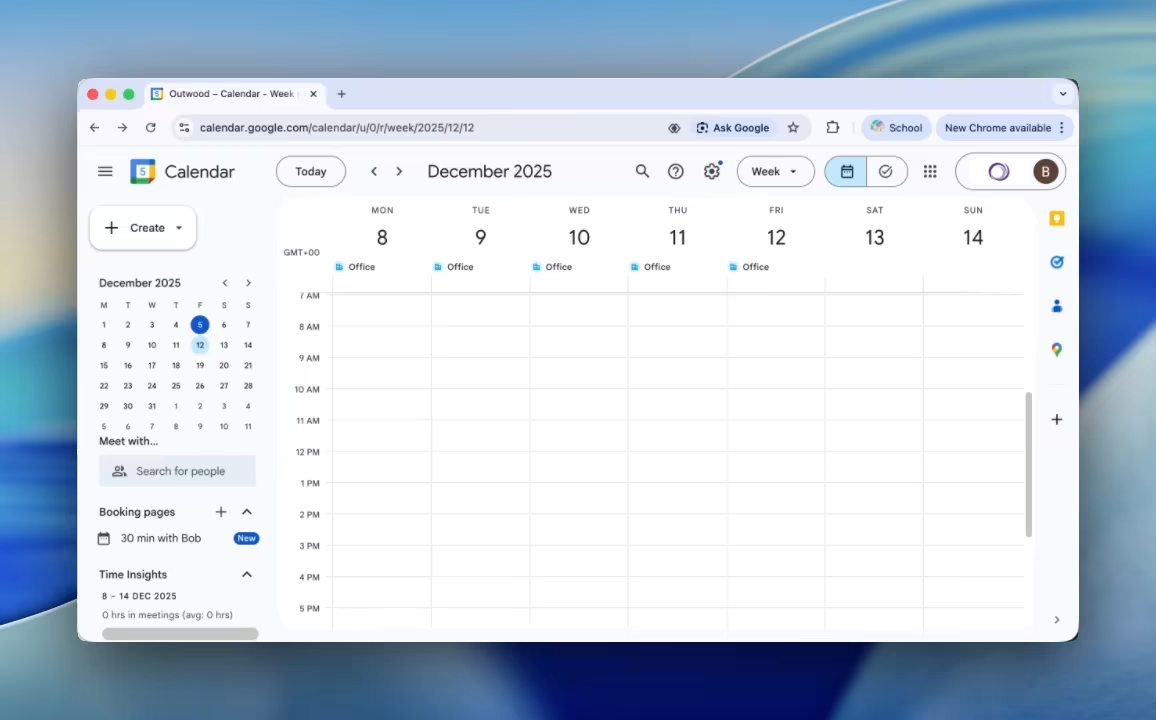
Additional calendars now have owners
When you create additional calendars for yourself or your group in Google Calendar, these “secondary” calendars now have a designated owner (by default, the person who creates them).
Learn how to create new calendars.
Meet links when changing recurring events
When you change the start and end times or recurrence frequency of recurring events and apply the change to “this and following events”:
- The updated events will gain a new unique Meet link
- The previous events will keep the existing link
Learn how to create recurring events in Calendar.
Google Vids
What is Google Vids?
Google Vids is Google’s AI-powered video creation and editing tool.
New to it?
- Check out their ‘Vids on Vids’ series for quick tutorials!
- Or find out more in the Get started with Vids guide.
Ingredients to video
When you generate an AI video in Google Vids, you can now add up to three reference images as “ingredients” for your video. This can help when you want to use something specific in your video or to maintain consistency between several different videos.
Learn how to use AI to generate video clips in Google Vids.
Nano Banana Pro 🍌
Nano Banana Pro brings improved image creation and editing to Google Vids.
You can now refine images iteratively in Vids.